
Explore the controls

Every control has a reference below, including settings found in other panels.
How the sound travelsSignal flow and control paths
How shape changes articulation
An onset detector guides gain through Attack, Body and Tail while the original audio stays available.
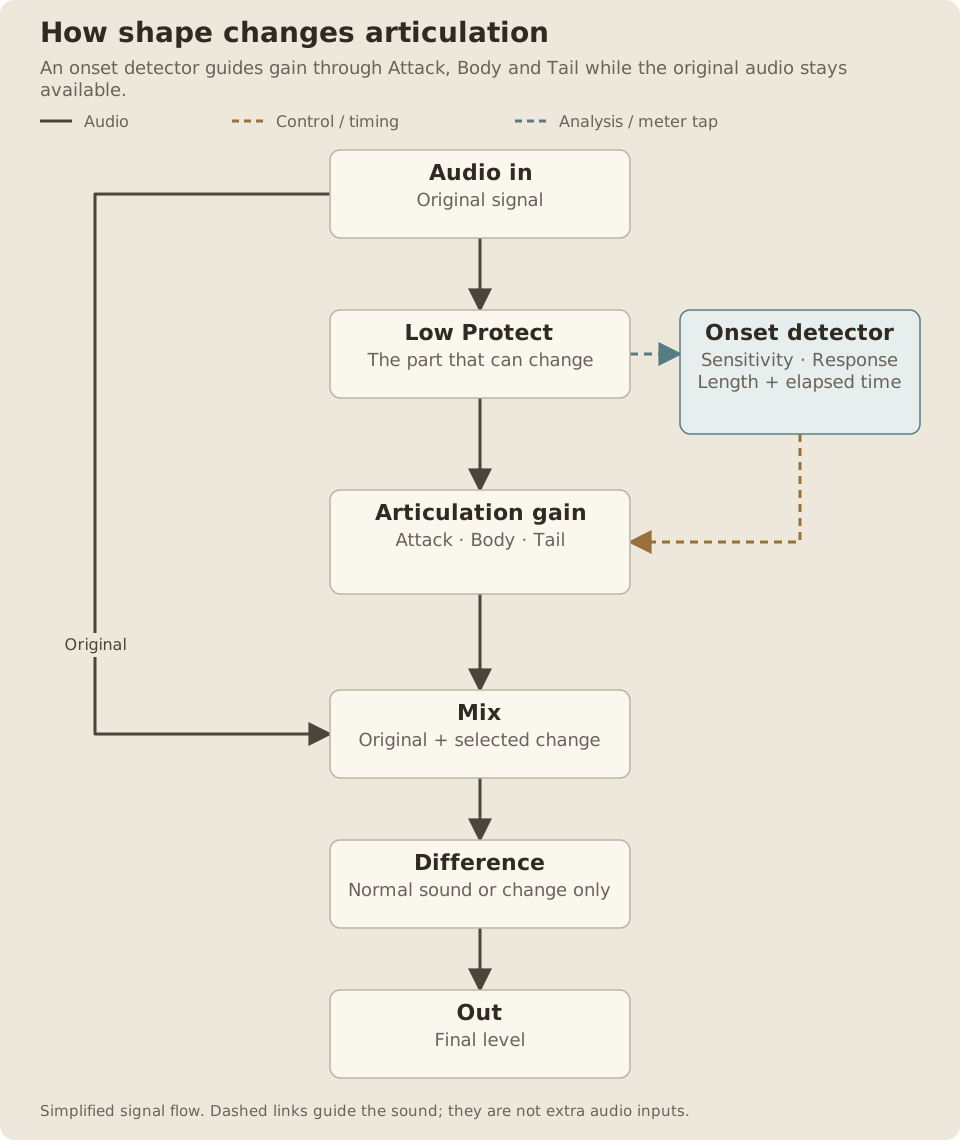
Read the path
- Low Protect selects the part of the signal that can be changed and feeds the detector.
- The detector follows each onset and the passing time after it.
- Attack, Body and Tail set gain over those overlapping regions. Length and Response shape their timing.
- Mix recombines the change with the original. Difference auditions the mixed change, then Out sets its level.
- Attack, Body and Tail estimate parts of a hit; they do not split the track into separate sound sources.
- Low Protect is a gradual crossover, not a brick-wall boundary. Low content becomes less affected.
- Difference listens to the actual mixed change before Out. At Mix 0%, Difference is silent.
shape changes the articulation already present in audio. Emphasize the start of a hit, add weight just behind it, shorten room and sustain, or bring quiet tails forward. It follows changes in the sound instead of requiring a MIDI trigger.
For installation and requirements, see Getting started.
Quick start
Something unclear?- Load shape on an audio track, or after an instrument.
- Play a drum loop or another sound with clear attacks.
- Raise Attack to bring the front of the hits forward.
- Reduce Tail to shorten sustain and room already in the recording.
- Adjust Length so the body and tail changes fit the groove.
- Lower Out if the boosts raise the output peaks.
shape starts neutral: Attack, Body and Tail are all 0 dB, with Length 1/16, Sensitivity 50%, Low Protect 100 Hz, Mix 100%, Out 0 dB, Natural Response and Normal Listen. Move Attack, Body or Tail to hear shaping.
Articulation controls
Something unclear?Attack
Something unclear?- Range
- −18 to +18 dB
- Default / reset
- Default: 0 dB
- Starting point
- Try +3 dB on a drum loop to bring out its leading edge.
Changes the beginning of a detected event, from −18 to +18 dB. Positive values emphasize the front of a hit. Negative values soften it.
Use a small boost for more definition or a cut to make a sharp loop sit farther back.
- Range
- −18 to +18 dB
- Default / reset
- Default: 0 dB
- Starting point
- Try +2 dB for weight behind a snare, or −3 dB for more separation.
Changes the sound immediately after the attack, from −18 to +18 dB. Raise it for more weight behind a hit or reduce it for a leaner, more separated sound.
Attack, Body and Tail act on overlapping regions of time. They do not separate the kick, snare and hi-hat in a mixed loop.
- Range
- −18 to +18 dB
- Default / reset
- Default: 0 dB
- Starting point
- Try −6 dB to reduce existing drum-room sustain.
Changes later sustain, room and breath already in the sound, from −18 to +18 dB. Negative values make a recording drier and shorter. Positive values bring its existing tail forward.
Tail does not generate a new reverb or extend a recording beyond the audio that is there.
Length
Something unclear?- Range
- 1/128–1/1, including straight, dotted and triplet divisions
- Default / reset
- Default: 1/16
- Starting point
- Start at 1/16, then shorten it if room survives too far after a hit.
Sets the timing of the transition from body to tail in note lengths that follow the song tempo. Choices span 1/128 through 1/1, with straight, dotted and triplet values within that range. D means dotted; T means triplet. The starting value is 1/16.
A shorter Length moves shaping toward the tail earlier. A longer Length lets more of the sound remain in the body region.
Length is relative to each detected event. It does not quantize, move or trim the hits to the song grid, and it is not a guaranteed sample cutoff.
Sensitivity
Something unclear?- Range
- 0–100%
- Default / reset
- Default: 50%
- Starting point
- Start at 50%; raise it if quieter ghost notes are missed.
Controls how readily quieter changes are treated as events, from 0% to 100%. Higher sensitivity includes smaller changes; lower sensitivity concentrates on stronger events. The starting value is 50%.
If small ghost notes are not receiving the intended shaping, raise Sensitivity. If a busy recording keeps retriggering on details you do not want to emphasize, reduce it.
Low Protect
Something unclear?- Range
- Full (0 Hz) to 8 kHz
- Default / reset
- Default: 100 Hz
- Starting point
- Try 100 Hz for a drum loop or Full while learning the articulation.
- Available when
- The detector follows the unprotected upper band.
Gradually reduces shaping of frequencies below the selected point, up to 8 kHz. It starts at 100 Hz. The minimum setting gives full-range shaping and reads Full on desktop or may read 0 Hz on Push.
The event detector follows the same upper band. Raising Low Protect can help shape the snap and room of a loop while leaving more low-end weight alone.
The crossover is gradual. A kick’s click and upper harmonics can still change; a strong boost can also reach below the selected frequency.
Output and listening
Something unclear?- Range
- 0–100%
- Default / reset
- Default: 100%
- Starting point
- Keep 100% while shortening a tail; try 50% for parallel attack shaping.
Blends 0% original to 100% processed. Lower it for a parallel version of the shaping.
The original audio includes its original tails. If you cut Tail and then reduce Mix, some of that tail comes back through the dry sound.
- Range
- −70 to +6 dB; minimum mutes
- Default / reset
- Default: 0 dB
- Starting point
- Reduce Out after an Attack boost so bypass compares fairly.
Sets final output trim from −70 to +6 dB. The minimum is mute; 0 dB leaves the output level untrimmed.
Positive Attack, Body or Tail can raise peaks. shape has no hidden limiter, so use Out to leave room for the next device.
Response
Something unclear?- Range
- Natural or Tight
- Default / reset
- Default: Natural
- Starting point
- Compare Tight on a busy drum loop with the same Attack setting.
Chooses Natural or Tight. Natural uses more rounded envelope and recovery behavior. Tight gives a firmer response. Try both with the same articulation settings and choose the one that follows the material better.
Listen: Difference
Something unclear?- Range
- Normal or Difference
- Default / reset
- Default: Normal
- Starting point
- Audition Difference briefly, then return to Normal.
- Available when
- Difference is silent at neutral shaping and reduced by Mix.
Switches from normal output to the difference between processed and original audio at the current Mix, followed by Out. Use it to hear what shape is changing.
Difference is silent when shaping is neutral. It is also reduced by Mix, so use a higher Mix if you want a clear audition of the processing. Turn Difference off to return to the full sound.
Reading the display
Something unclear?The diagram shows the target gain after an isolated detected hit. Attack, Body, Tail, Length and Response change its shape. Neutral articulation produces a flat line.
This is a gain diagram, rather than the incoming waveform. A busy passage can retrigger before the illustrated curve has finished.
How-tos
Something unclear?Make a roomy drum loop drier
Something unclear?Reduce Tail and adjust Length until the room recedes without taking away too much body. If the kick loses weight, raise Low Protect. Keep Mix high if you want to remove most of the original room.
Add definition without making the whole loop louder
Something unclear?Raise Attack a little and reduce Out to compare with bypass at a similar listening level. Try Tight Response for more defined articulation. Use Difference to check that you are emphasizing useful details.
Bring forward a quiet vocal chop
Something unclear?Raise Body for weight and adjust Attack for the consonant. Raise Sensitivity if quieter changes are being missed. A small Tail boost can reveal breath and space already in the recording.
Soften a sharp percussion part
Something unclear?Reduce Attack while leaving Body and Tail near 0 dB. Adjust Length and Response to keep the softer hit sounding natural. Use Mix if you want some of the original attack back.
Push and Live
Something unclear?The eight encoders are Attack, Body, Tail, Length, Sensitivity, Low Protect, Mix, Out. The two rightmost upper buttons select Response and Listen. Other upper-button positions are empty.
Low Protect at its minimum can appear as 0 Hz on Push. It means full-range shaping, rather than protection below an inaudible frequency.
Troubleshooting
Something unclear?I cannot hear a change
Something unclear?Check that Attack, Body or Tail is away from 0 dB, Mix is above 0%, and the track is sending audio through shape. If Low Protect is very high, much of the source may be protected. Try a clear drum loop and Full Low Protect while learning the controls.
Everything goes silent when I press Listen
Something unclear?Difference auditions only the processing change. Neutral settings produce silence. Return Listen to Normal to hear the complete sound again.
Shortening Tail does not remove all the room
Something unclear?Reduce Mix’s dry contribution, adjust Length, and check for reverb after shape in the device chain. shape changes existing audio; a later reverb creates a new tail after the shaping.
The output clips after boosting Attack
Something unclear?Lower Out. Articulation boosts can raise peaks and there is no automatic peak limiting.
Changing Length moves the shaping but not the notes
Something unclear?Length controls the envelope timing after detected events. It does not change the positions of audio hits.