
Explore the controls
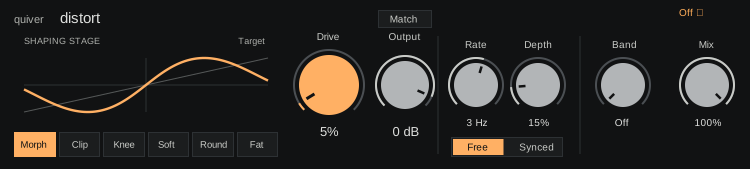
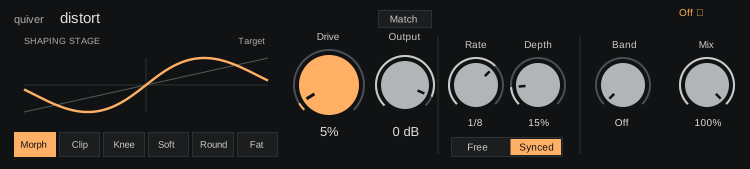
Every control has a reference below, including settings found in other panels.
How the sound travelsSignal flow and control paths
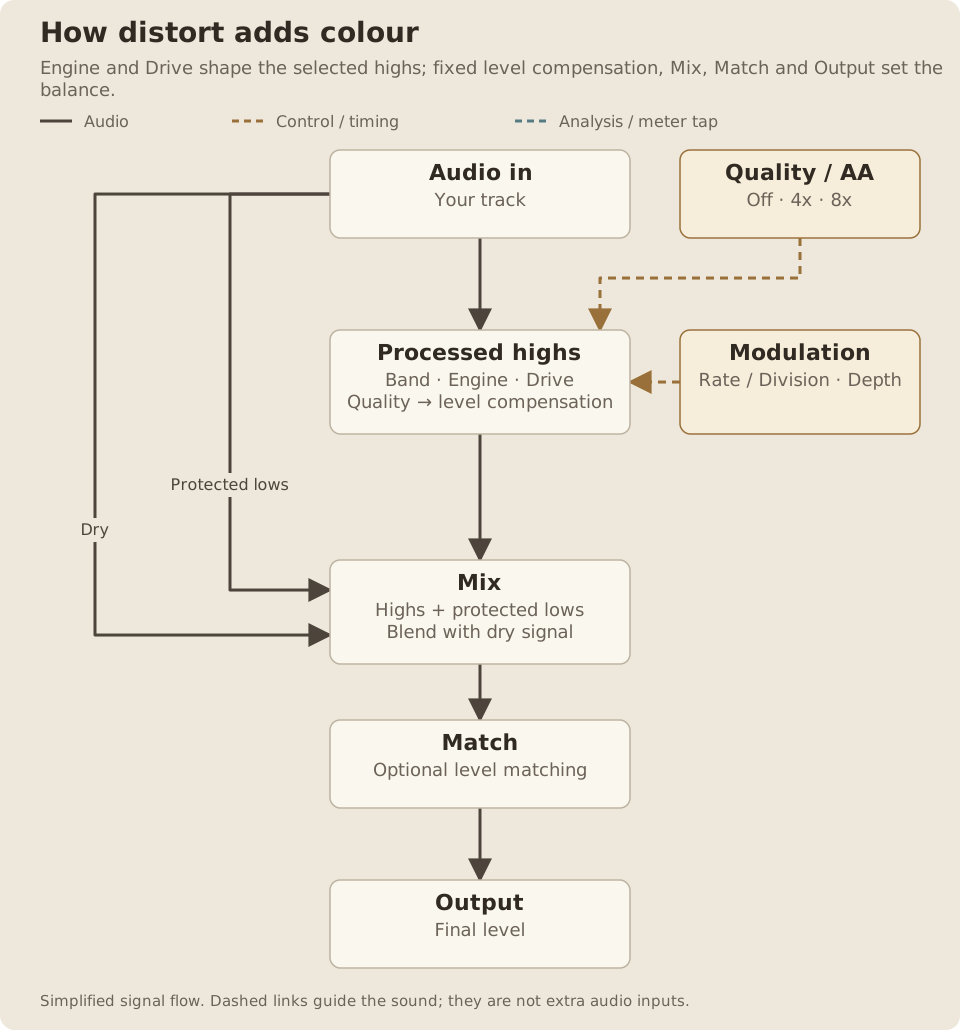
How distort adds colour
Engine and Drive shape the selected highs; fixed level compensation, Mix, Match and Output set the balance.
Read the path
- The incoming audio keeps a dry path to Mix. Band separates the protected lows from the frequencies being processed.
- Engine and Drive shape the selected highs. Quality chooses Off, 4x or 8x processing, followed by fixed level compensation.
- Rate or Division and Depth move the distortion over time. The compensation follows Engine and manual Drive, rather than the modulation.
- The processed highs rejoin the protected lows. Mix blends this with the dry signal, optional Match adjusts average level, and Output sets the final level.
- At Band 0 Hz the whole signal is processed. Above 0 Hz, the protected low complement stays outside the distortion and its level compensation.
- Fixed level compensation follows the controls, not the incoming audio. The dry Mix path also stays separate.
- Match acts after Mix and before Output. Quality aligns the processed, protected-low, dry and Match-reference paths.
distort changes the character of audio with six distortion engines. Drive sets the starting color; Rate and Depth move it over time. Use Band to keep the low end clean, and Mix to blend the result with the original sound.
For installation and requirements, see Getting started.
Quick start
Something unclear?- Load distort on an audio track, or after an instrument.
- Play the sound you want to process.
- Set Depth to 0% while choosing an Engine and Drive amount.
- Adjust Output so you can compare at a similar listening level.
- Raise Depth and adjust Rate to introduce movement.
- Reduce Mix if you want some of the clean sound alongside it.
A fresh device starts on Morph, with Drive 5%, Depth 15%, Free Rate 3 Hz, Band Off, Mix 100% and Output 0 dB. The stored synced Division starts at 1/8.
The response depends on the incoming signal. A louder input can sound more distorted at the same Drive setting.
Tone controls
Something unclear?Drive
Something unclear?- Range
- 0–100%
- Default / reset
- Default: 5%
- Starting point
- Start at 5% with Depth at 0%, then raise Drive for more harmonics.
Sets the amount and character of saturation, from 0% to 100%. Its effect depends on the selected engine; it is not a measurement of input gain in dB. The manual Drive setting also determines the engine’s fixed level compensation.
Begin low, then turn it up while listening to the full track. For a steady setting, use Depth 0%.
On desktop, the central curve area also provides Drive dragging.
Engine
Something unclear?- Range
- Morph, Clip, Knee, Soft, Round, Fat
- Default / reset
- Default: Morph
- Starting point
- Start on Morph and compare Clip for a harder edge.
Chooses one of six characters:
- Morph: a symmetric, input-sensitive blend of soft saturation and sine shaping. Higher Drive bends the waveform further, while the incoming level changes the balance between the two responses.
- Clip: a hard-clipping character with a sharper edge.
- Knee: a softer transition into clipping.
- Soft: gradual bending and saturation.
- Round: a rounded onset of saturation.
- Fat: a strongly asymmetric character with prominent even harmonics.
Each engine includes fixed level compensation based on Engine and manual Drive. It does not follow the incoming audio or the modulation. Perceived level can still change with the sound and settings; use Output or optional Match when comparing.
- Range
- Off (0 Hz), then 20 Hz–2 kHz
- Default / reset
- Default: Off
- Starting point
- Try 100–160 Hz on a bass to preserve its low fundamental.
At 0 Hz, the whole signal is processed. Raise Band to preserve the lows and apply distortion above the chosen crossover, up to 2 kHz. The active crossover range starts at 20 Hz. The protected lows also stay outside the engine’s level compensation.
For bass or a drum bus, increase Band until the fundamental stays solid while the upper part gains color. The split is gradual, so the chosen frequency is a transition region rather than a sharp wall.
- Range
- 0–100%
- Default / reset
- Default: 100%
- Starting point
- Try 50% for parallel color while retaining the original attack.
Blends 0% dry to 100% processed. A lower Mix can preserve the original attack while adding the distorted texture behind it. Band and Mix work together: Band chooses which region is colored, while Mix sets how much of that coloring reaches the output.
Output
Something unclear?- Range
- −70 to +6 dB; minimum mutes
- Default / reset
- Default: 0 dB
- Starting point
- Reduce Output until the processed and bypassed levels are comparable.
Sets the final level, from −70 to +6 dB. Use it to leave headroom and compare the processed sound with bypass at a similar volume. A louder sound can seem more exciting even when the tonal change is not what the track needs.
Match
Something unclear?- Range
- Off or On
- Default / reset
- Default: Off
- Starting point
- Enable Match while comparing engines, then check the output peaks.
Optional automatic matching of average output level to input level. Off is the starting setting.
Match follows average level; it is not a peak limiter. Peaks can still rise, particularly with aggressive processing or a positive Output setting. Check the next device’s input meter.
Modulation controls
Something unclear?Depth
Something unclear?- Range
- 0–100%
- Default / reset
- Default: 15%
- Starting point
- Start at 0% for steady saturation; try 15% for movement.
- Available when
- Movement needs a Free Rate above 0 Hz or a synced Division other than Off.
Sets how far the modulation moves the distortion setting, from 0% to 100%. At 0%, distort is a steady saturator. Increase Depth for audible changes in texture over each cycle.
Use a moderate Drive with a small Depth for movement that stays close to one character. A higher Depth makes the change more pronounced.
- Range
- Free or Synced
- Default / reset
- Default: Free
- Starting point
- Choose Synced and 1/4 Division for one motion cycle per beat.
Chooses Free or Synced timing. Free uses Rate in hertz. Synced uses a note Division that follows the Set’s tempo and beat position.
Free Rate and synced Division keep separate settings, so switching modes does not require choosing the other mode’s value again.
Synced keeps cycling at the selected tempo division while playback is stopped, so you can use it while playing an instrument live. Pressing Play aligns the modulation with the Set’s beat. To stop the movement, choose Division Off or set Depth to 0%.
- Range
- 0–300 Hz
- Default / reset
- Default: 3 Hz
- Starting point
- Try 0.5 Hz for a slow sweep.
- Available when
- Available in Free mode; 0 Hz parks modulation at manual Drive.
In Free mode, sets modulation speed from 0 to 300 Hz. Most of the control’s travel is given to slower rates. Slow values create sweeps; faster values move into rough, rapid texture changes.
At 0 Hz, modulation stops at the manual Drive setting.
Division
Something unclear?- Range
- Off, 1 bar, 1/2, 1/4, 1/8, 1/16, 1/32
- Default / reset
- Default: 1/8
- Starting point
- Try 1/4 for a clear pulse.
- Available when
- Available in Synced mode; Off parks modulation at manual Drive.
In Synced mode, Division replaces Rate. Choose Off, 1 bar, 1/2, 1/4, 1/8, 1/16 or 1/32. Off stops modulation at the manual Drive setting. The other values set the duration of each cycle.
A quarter note creates one cycle per beat; a bar creates a slower sweep through the phrase.
Quality and display
Something unclear?Quality
Something unclear?- Range
- Off, 4x or 8x
- Default / reset
- Default: Off
- Starting point
- Compare Off with 4x on a bright, driven passage.
- Available when
- 4x and 8x add 90 samples of latency; choose before the passage.
Chooses Off, 4x or 8x oversampling. Off is the starting setting and adds no processing delay. 4x and 8x reduce aliasing from the distortion and add 90 samples of processing delay, with a matching compensation request to Live.
At extreme Drive settings, 4x has limits with Clip, Knee, Soft, Round and Fat. Use 8x for these more aggressive settings to reduce aliasing further.
Quality changes briefly fade the sound while processing switches. Choose it before recording or performing a passage. Higher quality requires more processing than Off.
Curve display
Something unclear?The central display shows the selected engine’s transfer curve and its movement. It helps relate Drive and modulation to the changing shape. It is a view of the distortion response, rather than a recording of the input waveform.
How-tos
Something unclear?Add steady warmth to a synth
Something unclear?- Set Depth to 0%, choose Morph and start with low Drive.
- Raise Drive until the harmonics become useful in the mix.
- Adjust Output or enable Match for a fair comparison with bypass.
- Reduce Mix if the original sound needs more presence.
Give drums a repeating edge
Something unclear?Choose Synced timing and a 1/4 or 1/8 Division. Raise Depth gradually, then adjust Drive so the cycle moves between two useful colors. Raise Band if the kick’s low end becomes too rough.
Distort the top of a bass
Something unclear?Raise Band to keep the low fundamental clean. Choose an Engine for the upper harmonics, then use Mix to place them behind the original. Check the result on the full bass part, including its lowest notes.
Compare the six engines
Something unclear?Set Depth to 0% so movement does not obscure the comparison. Keep the same source playing, switch Engine, and readjust Drive and Output for each one. Level compensation helps with comparison, but equal Drive percentages do not mean equal distortion or guarantee equal loudness on every sound.
Push and Live
Something unclear?The eight encoders are Drive, Engine, Mix, Rate or Division, Sync, Depth, Band, Output. After selecting the device, the two rightmost upper buttons provide Quality and Match.
The fourth encoder changes from Rate to Division when Sync changes. The remaining encoder positions stay the same.
Troubleshooting
Something unclear?I hear distortion but no movement
Something unclear?Raise Depth. In Free mode, check that Rate is above 0 Hz. In Synced mode, choose a Division other than Off. With a very quiet input or a small Depth, movement can be subtle.
The low end is becoming fuzzy
Something unclear?Raise Band to protect more of the bass, reduce Drive, or lower Mix. Band at 0 Hz deliberately processes the whole signal.
Match is on but peaks still clip
Something unclear?Match follows average level. Lower Output or the level entering the following device; Match does not guarantee a peak ceiling.
There is a brief dip when I change Quality
Something unclear?The device fades while switching processing modes. Set Quality before the passage rather than changing it during a held sound.
I hear unwanted high tones at extreme Drive
Something unclear?Choose Quality 8x. The 4x mode can leave aliasing when Drive is pushed hard, particularly with the five engines listed under Quality. Reduce Drive if you need a cleaner result.
The same settings sound different on another recording
Something unclear?distort responds to the audio entering it. Input level and the source’s frequency content change how the engine reacts. Adjust Drive while listening to that source.