
Explore the controls
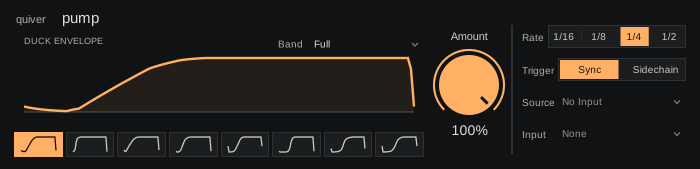
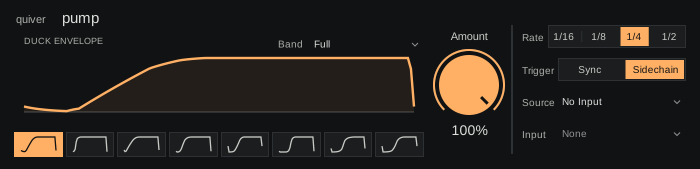
Every control has a reference below, including settings found in other panels.
How the sound travelsSignal flow and control paths
How pump makes space
A timed or detected trigger shapes gain; the sidechain controls the ducking, not the sound.
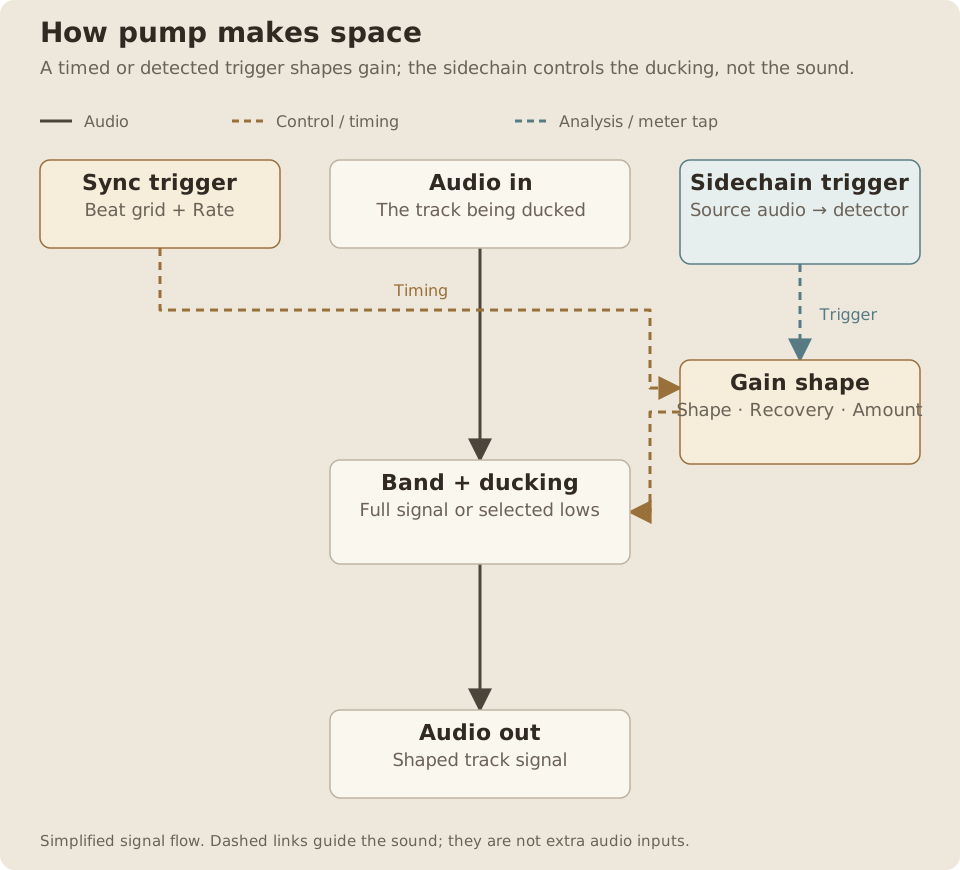
Read the path
- Your track passes into the gain-shaping stage.
- Sync follows the beat grid. Sidechain restarts the shape from the selected source audio.
- Shape, Recovery and Amount set the duck; Rate sets its timing.
- Band applies the gain to everything or to the low band before the signal leaves pump.
- Sidechain audio feeds the kick detector. It is not mixed into the output.
- In Full, gain changes the whole signal. With a Band frequency, the low band is ducked while the high part continues.
- The detector path and the shaped gain are controls; only the solid audio path reaches the output.
pump turns a sound down and brings it back along a chosen curve. Use it to make room for a kick, give a pad a pulse, or move just the low end of a bass. Sync repeats with the tempo. Sidechain starts each duck from audio on another track.
For installation and requirements, see Getting started.
Quick start
Something unclear?- Load pump on an audio track, or after an instrument on the track you want to duck.
- Play a sustained sound or a loop.
- Leave Trigger on Sync and choose 1/4 under Rate.
- Select one of the eight curve thumbnails.
- Turn Amount down until the movement fits the track.
- Drag horizontally across the curve to adjust Recovery. An earlier recovery gives the sound more room between ducks; a later recovery holds it back longer.
pump is an audio effect. Putting it before an instrument will not duck the instrument’s output.
Ducking controls
Something unclear?Amount
Something unclear?- Range
- 0–100%
- Default / reset
- Default: 100%
- Starting point
- Try 60% on a sustained pad, then adjust against the kick.
Sets the depth of the duck, from 0% to 100%. Lower values make a gentle dip; higher values make a stronger pumping effect. At Full Band, 0% leaves the settled audio unchanged.
A fresh device starts at 100% Amount, Pump Shape, Recovery 0%, Rate 1/4, Full Band and Sync Trigger. Amount changes depth without choosing a different curve or rate.
Recovery
Something unclear?- Range
- −100 to +100%
- Default / reset
- Default: 0%
- Starting point
- Start at 0%, then move earlier until the bass returns between kicks.
Moves the curve’s recovery earlier or later, from −100% to +100%. On desktop, drag horizontally across the large curve. On Push, use the second encoder.
Use Recovery to fit the return of the sound around the length of the kick. It changes the shape of the duck within its step; it does not move your clips or MIDI notes.
Shape
Something unclear?- Range
- Snap, Bounce, Quick, Pump, Hold, Steep, Late, Long
- Default / reset
- Default: Pump
- Starting point
- Start with Pump; compare Snap for a quicker return.
Chooses one of eight ducking curves, shown as thumbnails on desktop. The large display shows the selected curve. Try a sharp return for a pronounced pulse or a more gradual return for a softer swell, then refine it with Recovery.
- Range
- 1/16, 1/8, 1/4 or 1/2 note
- Default / reset
- Default: 1/4
- Starting point
- Use 1/4 for one duck per beat.
- Available when
- In Sidechain, this is the duration of each kick-triggered curve.
Chooses the duration of each duck: 1/16, 1/8, 1/4 or 1/2 note. A quarter note gives one duck per beat. Shorter values give faster movement; longer values leave more space for the sound to rise.
Rate also sets the curve duration in Sidechain mode. The incoming kick decides when that curve starts.
- Range
- Full; 60, 80, 100, 125, 160, 250 or 500 Hz
- Default / reset
- Default: Full
- Starting point
- Try 100 Hz to duck a bass fundamental while keeping its upper tone.
Full ducks the whole signal. Choosing 60, 80, 100, 125, 160, 250 or 500 Hz ducks only the lower part of the sound, leaving the upper part un-ducked.
For a bass that needs room around the kick but should keep its upper harmonics present, try 100 or 160 Hz. The crossover is a gradual filter transition, rather than a perfectly sharp boundary. Use Full when comparing Amount 0% directly with bypass.
Trigger and routing
Something unclear?Trigger: Sync
Something unclear?- Range
- Sync or Sidechain
- Default / reset
- Default: Sync
- Starting point
- Use Sync for a repeating pulse without routing another track.
- Available when
- Source and Input are inactive in Sync.
Repeats the selected curve at the song tempo. During playback, pump follows Live’s beat position. With the transport stopped, the pulse continues at the song tempo; starting playback brings it back to Live’s beat.
Sync does not need a kick track. Its Push page leaves Source and Input empty.
Trigger: Sidechain
Something unclear?- Range
- Kick detection from the selected source
- Starting point
- Choose the kick track, start both tracks, and listen for each duck.
- Available when
- Requires audio from the chosen Source and Input.
Starts a duck when pump detects a kick in the selected source audio. Put pump on the sound that should become quieter, then select the track that should trigger it.
The source can be an audio track or an instrument track that produces audio. MIDI notes alone are not a sidechain signal.
Source in Live
Something unclear?- Range
- Available audio-producing tracks; No Input
- Default / reset
- Default: No Input
- Starting point
- Choose a uniquely named kick track.
- Available when
- Available in Sidechain mode.
Select the kick track in the named Source menu. No Input disconnects the sidechain. Keep the target track playing while checking the source so you can hear whether the kick is triggering the duck.
Source on Push
Something unclear?- Range
- Whole tracks 01–50; No Input; route status Other
- Starting point
- Start with the kick on track 01 and select 01.
- Available when
- Available in Sidechain; numbers include groups and tracks inside them.
Source uses track numbers 01 through 50, following the order of tracks in the Set. 01 is the first track, 02 the second, and so on.
Group Tracks and tracks inside groups count, even when a group is folded. Return tracks and Main do not count. Expand groups in Live if you need to check the order.
Give your source tracks unique names. Avoid Main, No Input and Ext. In as track names. An unavailable or ambiguous choice leaves the existing source unchanged.
The Push selector chooses whole tracks. Individual Drum Rack pads and nested chains are not listed. Other means the current route is outside the numbered whole-track choices; it is a status value, rather than another source to select.
Input
Something unclear?- Range
- Pre FX, Post FX, Post Mixer; other existing routes are contextual
- Default / reset
- Default: None
- Starting point
- Choose Pre FX so a kick triggers before its effects.
- Available when
- Available after choosing a valid Source in Sidechain.
Chooses where to take the source audio:
- Pre FX: before the source track’s effects. A useful starting point for a kick.
- Post FX: includes processing on the source track.
- Post Mixer: also follows the source track’s mixer settings.
Desktop Live can expose additional taps for the selected source. Push uses the whole-track taps above. None or Other can describe an existing route that is not one of those selections.
Switching between Sync and Sidechain keeps the chosen route. On Push, Source and Input appear only in Sidechain mode.
Reading the display
Something unclear?The large curve shows how the gain recovers over a step. A measured peak waveform from the selected auxiliary input can appear behind it, helping you fit the recovery around a kick. The waveform is a reference display; drawing or clicking it does not edit the source audio.
The eight small curve drawings choose Shape. Drag the large curve horizontally to change Recovery.
How-tos
Something unclear?Make a pad breathe with the beat
Something unclear?- Put pump after the pad instrument and any effect you want to pump with it.
- Choose Sync, Rate 1/4 and Full Band.
- Start with a strong Amount so the curve is easy to hear.
- Adjust Recovery until the pad returns in the right place.
- Reduce Amount for the final balance.
Placing a reverb before pump ducks the reverb too. Placing it after pump allows the reverb tail to fill the dips.
Duck only when the kick plays
Something unclear?- Put pump on the bass or pad, rather than on the kick.
- Choose Sidechain.
- Choose the kick track under Source and Pre FX under Input.
- Play both tracks and set Amount and Recovery.
- Stop only the kick clip. The ducking should stop while the target sound continues. Restart the kick to check the relationship again.
Keep the upper bass steady
Something unclear?Choose a low Band such as 100 or 160 Hz, then adjust Amount while listening to the kick and bass together. Raise Band if too much low-mid energy still crowds the kick; choose Full if the entire bass should pulse.
Push and Live
Something unclear?The eight encoders are Amount, Recovery, Shape, Rate, Band, Trigger, Source, Input. Source and Input occupy the last two positions only in Sidechain mode. There are no duplicate upper-button shortcuts.
The desktop face has named routing menus and horizontal Recovery dragging. Push uses the numbered whole-track Source selector described above.
Troubleshooting
Something unclear?Nothing is ducking
Something unclear?Check that audio reaches pump and that Amount is above zero. In Sidechain, check Source and Input, and make sure the source track is producing audio. Choose Pre FX first. In Sync, choose Full Band to make the movement easier to hear.
A source number will not stay selected
Something unclear?Check the Set’s track order, including tracks inside groups. Rename duplicate or reserved track names. A position beyond the number of tracks in the Set cannot select a source. The previous route is retained when a choice cannot be resolved.
I cannot choose an individual Drum Rack pad on Push
Something unclear?The Push selector addresses whole tracks. Put the triggering sound on a separate track when you need to choose it independently.
The sound returns too late
Something unclear?Move Recovery earlier, try a different Shape, or shorten Rate. If the duck is simply too strong, reduce Amount.
The pulse continues after I stop Live
Something unclear?That is Sync’s stopped-transport behavior. Switch the device off to stop its processing, or use Sidechain when you want movement only from incoming trigger audio.