
← All free tools 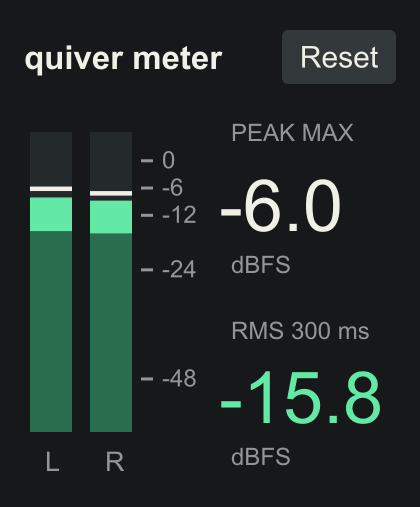
A small utility / A free download
meter.
Your levels. Easy to read.
Stereo peak and RMS bars, a clear maximum sample peak, and a live RMS number. Put it where you want to measure and keep your levels in view.
VERSION 1.0.0 / MAX FOR LIVE AUDIO EFFECT
No sign-up. No activation. Max for Live required.
QUIVER / MAX FOR LIVEFREE
quiver meter
140 PX WIDE / JUST THE READINGS YOU NEED
FreeNo activation
140 pxCompact device
Peak + RMSLevels in dBFS
MeterAudio passes through unchanged
Clear readings / Small footprint
A useful view of your levels.
Check a kick, balance a mix, or see what your master chain is doing. Move the device to measure a different point.
- Maximum sample peak
- The highest sample peak across either channel. It stays until you press Reset or click the number, while live readings continue.
- Live RMS
- A rolling 300 ms RMS reading of the louder channel, in dBFS. A steady sine reads about 3 dB below its sample peak. Silence shows a dash.
- Stereo bars + markers
- Separate left/right peak and RMS bars with two-second peak markers. The markers expire independently of the held maximum number.
Download / Drop in / Play
Where you need to see the level.
- Download and unzip the package.
- Drag quiver meter.amxd onto an audio track, group, or Main/Master. Place it first for the raw mix, or after processing to measure the result.
- Press Reset before checking a fresh maximum. Keep it outside a mastering rack if you want to measure while that rack is bypassed.
The device measures before the track fader. Keep the fader at 0 dB when comparing with the track’s output meter. Audio passes through unchanged, with zero added processing latency.
PEAK MAX measures sample peaks. For integrated loudness and maximum true peak, use quiver lufs. The compact meter has its own display timing; exact matching of Live’s meter animation is not claimed.